Try our newly launched: Marketing Services
Many Asus fans are going to be excited about the news of the Android 12 update. Asus has already started the Early Access Program for the Users to test the Android 12 Beta version. On the Official website, Asus said that " You can test it, share your feedback, or develop your apps to make them compatible with the official Android 12 platform".
Asus Beta Program: Asus Zenfone 8 Android 12 Beta
Unlike the other OEMs, ASUS launches a few devices and therefore they are able to launch the Android updates timely.
Ever since Google announced the Android 12 update in Google I/O 2021, Google has revealed several developer previews of this major update. However, a detailed assessment of the Android 12 features can only be made after the public release but here are some features that will be going to added in this update.
Android 12 will enable easier Wi-Fi sharing through the Nearby Share. Some new screenshot markup options have also been added. This will help users to customize the screenshots without any third-party apps.
In addition to that, It will support the AVIF image format and improved JPEG images without any increase in size. A transcoding layer is included in Android 12 to enable HVEC unsupported apps to utilize video compression.
Some Reports have shown that Google will be making significant design changes to Android 12. A refreshed UI will be added in this update which will change the entire look and feel from earlier versions.
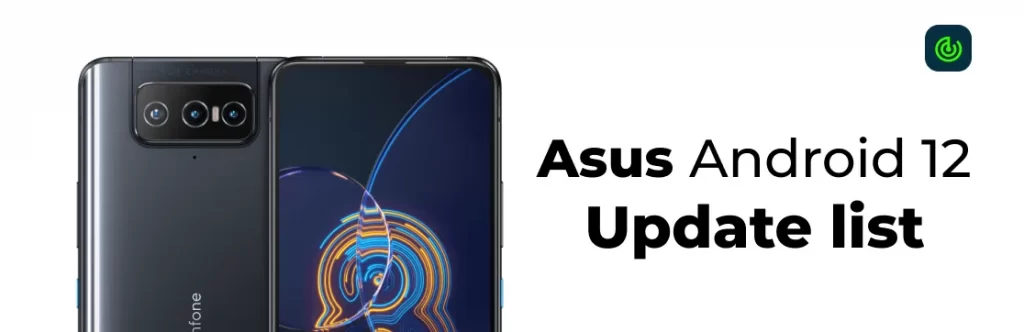
Expected list of Device:-
The Official Website of Asus also mentions some bugs and issues found in the Beta version of Android 12.
1. Fingerprint authentication is currently not supported
2. Face unlock feature currently not supported
3. No haptic feedback when touching the recent key
4. Battery status displayed in Settings may be inaccurate
5. 3rd-party apps compatibility issues
According to Asus official website, here are some measures to be taken care of before downloading the Beta version of Android 12.
You can follow these steps to download the Android 12 Update.
Step 1: Turn the device off, hold down the Volume Up key and then hold down the Power key to enter Fastboot mode. After that, connect your Zenfone 8 to your PC via a USB cable.
Step 2: Decompress the Android 12 image file, and then use the included scripts to flash your phone:
Caution: Do not unplug the USB cable and ensure a stable connection between your Zenfone 8 and PC during the flashing process.
Step 3: When the flash update finishes, a ‘Download Complete’ message will appear on the terminal. Hit the Enter key on the keyboard to restart your Zenfone 8.
Before you revert to the Android 11 update, we recommend some prerequisites.
Step 1: Turn the device off, hold down the Volume Up key and then hold down the Power key to enter Fastboot mode. After that, connect your Zenfone 8 to your PC via a USB cable.
Step 2: Decompress the Android 11 image file, and then use the included scripts to flash your phone:
Caution: Do not unplug the USB cable and ensure a stable connection between your Zenfone 8 and PC during the flashing process.
Step 3: When the flash update finishes, a ‘Download Complete’ message will appear on the terminal. Hit the Enter key on the keyboard to restart your ZenFone 8.
For more Oppo Android 12 updates please download our Android App – Available on the Play Store